Surviving the Antigravity 2.0 Update: How Google Broke My Workflow (And How to Fix It)
I was right in the middle of a serious coding session when, without warning, my entire development environment was hijacked. My familiar code editor, file tree, and integrated terminal vanished, instantly replaced by a blank, chat-only “Agent Manager” dashboard.
As someone who relies almost entirely on the classic IDE to get actual development work done, having my productivity shattered by an unprompted, forced update was incredibly annoying. I lost hours of work just trying to figure out where my code went and how to revert my system back to a functional state.
If you were similarly flashbanged by the Antigravity 2.0 update, here is a complete breakdown of what Google changed, the data behind the new features, why it broke our setups, and the exact steps I used to repair my workspace.
The Big Split: Separation of the IDE
Google’s underlying philosophy with the 2.0 release is that developers shouldn’t be editing code line-by-line anymore; they should be directing AI agents to do it for them.
Because of this, Google completely transformed Antigravity from a single IDE into a four-part platform:
- Antigravity 2.0 (Desktop App): A standalone orchestration hub for managing multiple agents. It completely removes the built-in code editor.
- Antigravity IDE: The original VS Code fork we know and love, which has now been sidelined into a separate program.
- Antigravity CLI: A terminal-native interface.
- Antigravity SDK: For self-hosting agent infrastructure.
The Data: Antigravity 1.0 vs. Antigravity 2.0
If you are wondering what actually changed under the hood, here is a breakdown of the differences between the classic workflow and the new platform:
| Feature | Antigravity 1.x (Classic IDE) | Antigravity 2.0 (New Platform) |
|---|---|---|
| Architecture | A single VS Code fork | Split into Desktop App, IDE, CLI, and SDK |
| Code Editor | Built-in and central to the UI | Removed entirely from the main app |
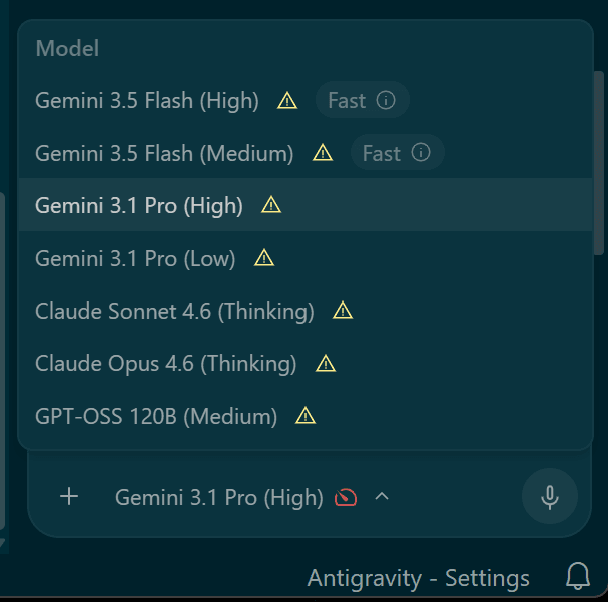
| AI Engine | Gemini 3.1 Pro/Flash | Gemini 3.5 Flash (12x faster) |
| Agent Execution | Single, sequential agent | Up to 4-5 parallel dynamic subagents running asynchronously |
| Browser Access | Autonomous web browsing | Explicit only (Requires the /browser command) |
| Project Context | Workspace/Folder-based | Cross-folder project context with granular permissions |
| Task Automation | Manual prompting | Scheduled cron-like tasks via /schedule |
The Nightmare: Why Everything Broke
The concept of an “agent orchestration hub” is fine, but Google’s deployment was an absolute disaster that ruined local environments.
Instead of properly separating the new app, the 2.0 installer dumped its files into the exact same folder as our existing Antigravity IDE. Because of how Electron apps load, the new 2.0 app.asar file completely hijacked the original executable. This meant clicking your normal IDE shortcut forced the new, editor-less Agent Manager to launch instead, locking you out of your workspace.
To make matters worse, the update silently changed the system product name. It abandoned our old AppData\Roaming\Antigravity settings folder and expected to find data in a brand new, empty Antigravity IDE folder. Google included zero migration logic, which meant all our extensions, keybindings, and chat histories appeared to be completely wiped out.
How I Repaired My Setup
After spending hours fighting with the new interface, fragmenting my chat history into duplicate projects, and burning through token limits, I finally managed to restore my old IDE.
If you just want your code editor back, here is how you fix it:
1. The .asar Bypass (Quickest Fix) You don’t need to reinstall to break the redirect loop.
- Press
Win + Rand paste:%LOCALAPPDATA%\Programs\Antigravity\resources. - Find the
app.asarfile and rename it toapp.asar.bak. - Go up one folder, right-click
Antigravity IDE.exe, and select Run as administrator. Your classic editor will launch.
2. The Full Rollback (Safest Fix) If the bypass is too buggy, downgrade entirely.
- Uninstall all Antigravity programs.
- Go to the Antigravity downloads page, click “View previous releases”, and download Version 1.23.2.
- Crucial Step: Once installed, open your Editor Settings (the gear icon), search for “Update Mode”, and set it to None or Manual so Google doesn’t force-upgrade you again.
3. Recovering Your Lost Files and Settings Your files aren’t deleted; they are just stranded in the old directory.
- Open your terminal/Command Prompt and copy your old settings to the new folder pathway:
xcopy "%APPDATA%\Antigravity\*" "%APPDATA%\Antigravity IDE\" /E /H /C /I /Y - Do the exact same thing for your extensions, moving them from your user profile’s
.antigravityfolder into the.antigravity-idefolder. - Restart the IDE, press
Ctrl + Shift + P, and runDeveloper: Reload Window. Your chats, file tree, and settings will instantly map back into place.
While Antigravity 2.0 might be a massive leap forward for multi-agent workflows, pushing a forced, untested architectural overhaul that destroys the daily productivity of active developers is unacceptable. Until the dust settles, I’m keeping auto-updates strictly turned off.

Avi is a researcher educated at the University of Cambridge, specialising in the intersection of AI Ethics and International Law. Recognised by the United Nations for his work on autonomous systems, he translates technical complexity into actionable global policy. His research provides a strategic bridge between machine learning architecture and international governance.